
TABLE OF CONTENTS
- Set things up on OfficeRnD
- Set things up on SphereMail
- Auto-connect all your SphereMail active customers
- Manually connect specific customers
- What information is shared/synced between both systems?
- How do you handle invoices when this integration is active?
SphereMail now offers direct integration with OfficeRnD to facilitate connecting your members with their virtual mailboxes and exporting their SphereMail invoices to OfficeRnD!
Here's how to set that up:
A) You’ll first need to log in to your OfficeRnD Flex account and visit the Admin Portal:
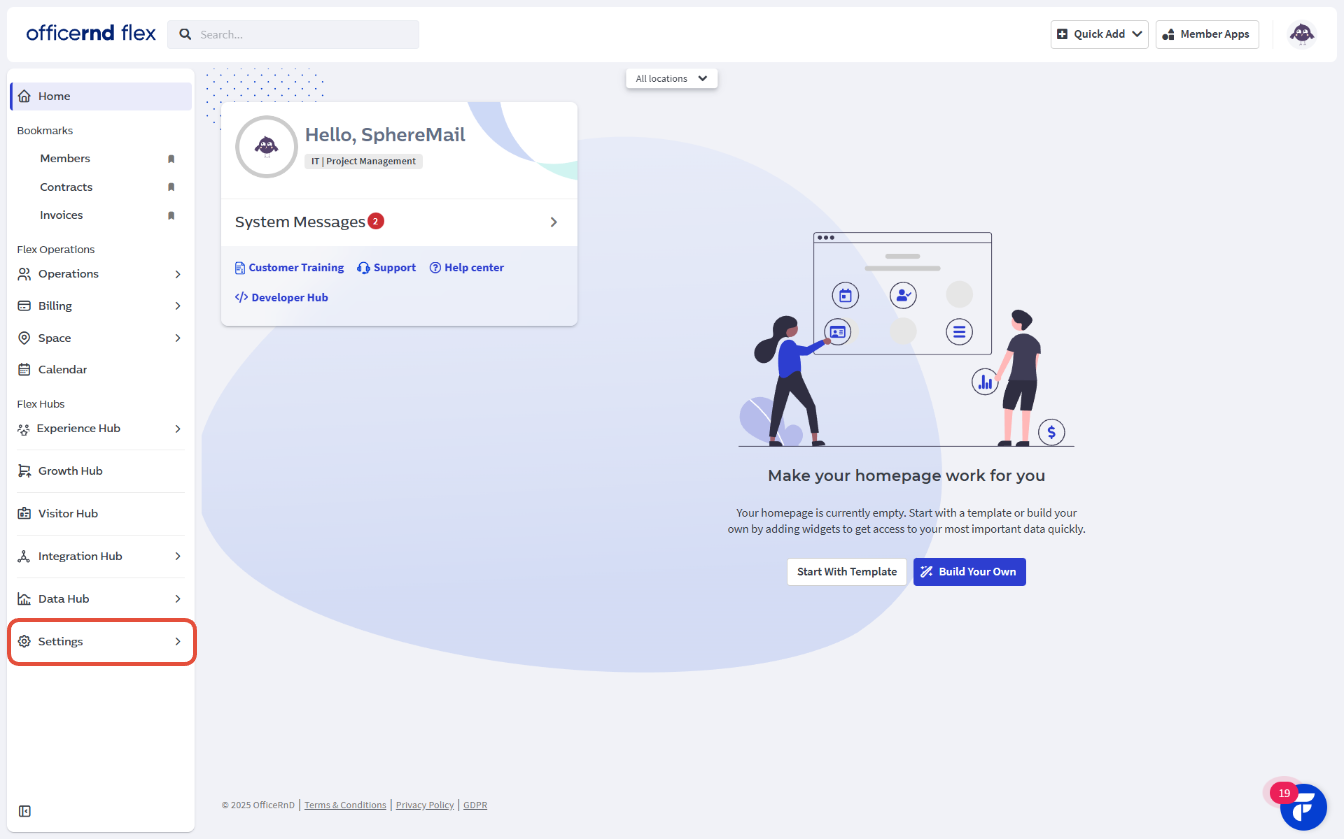
- Head to “Settings”:
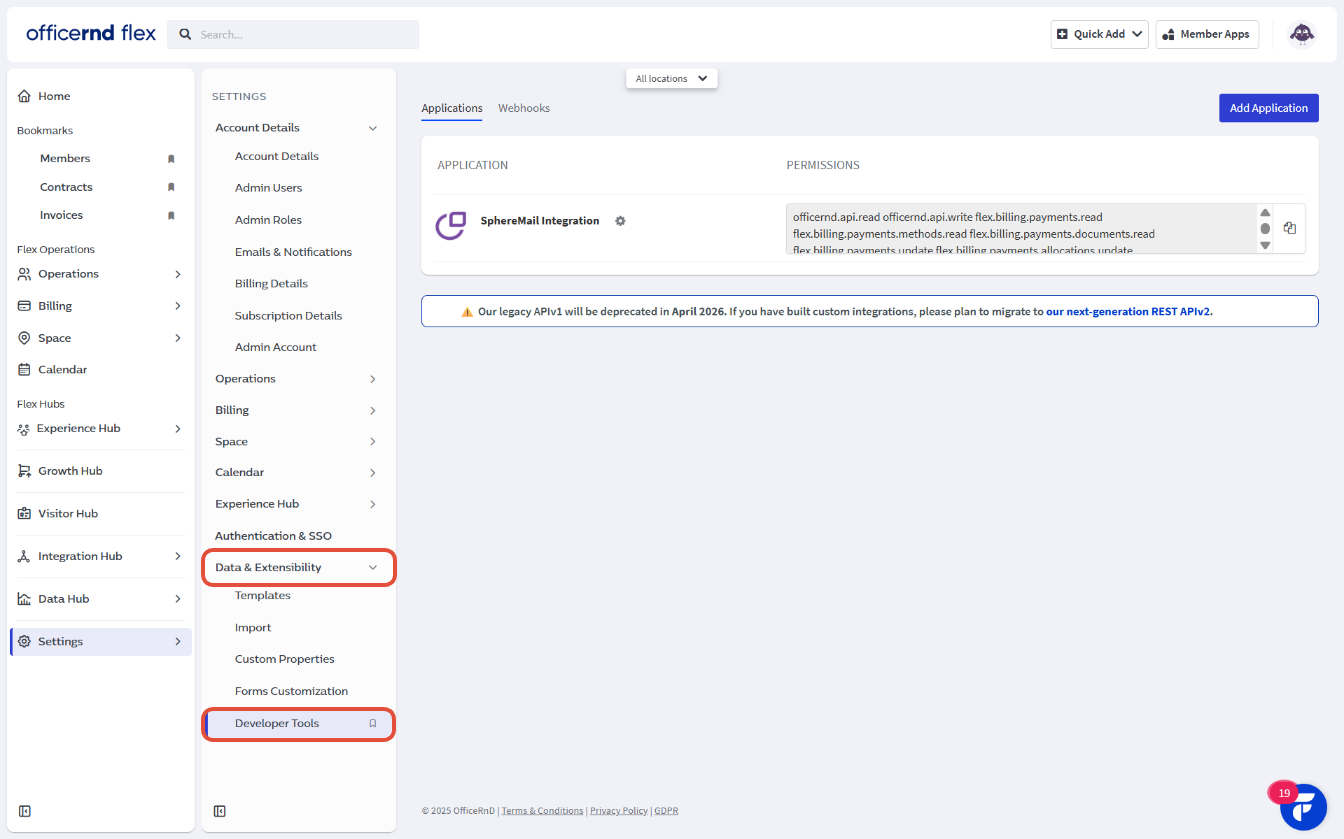
- Click on "Data & Extensibility" and choose “Developer Tools”:
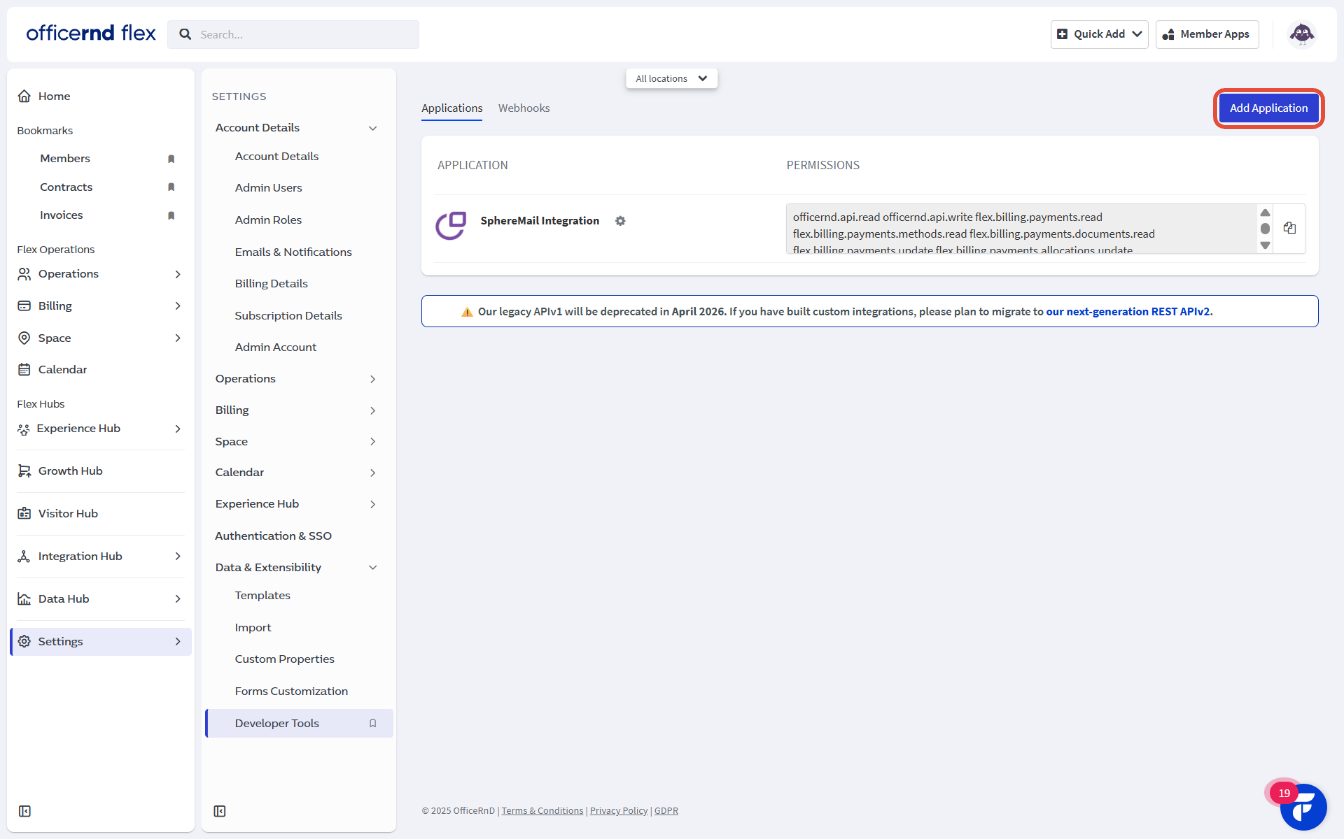
- There, you’ll have the option to create a new application with the needed permissions to integrate your SphereMail portal with OfficeRnD. Start by clicking on “Add Application” and filling in the required info:
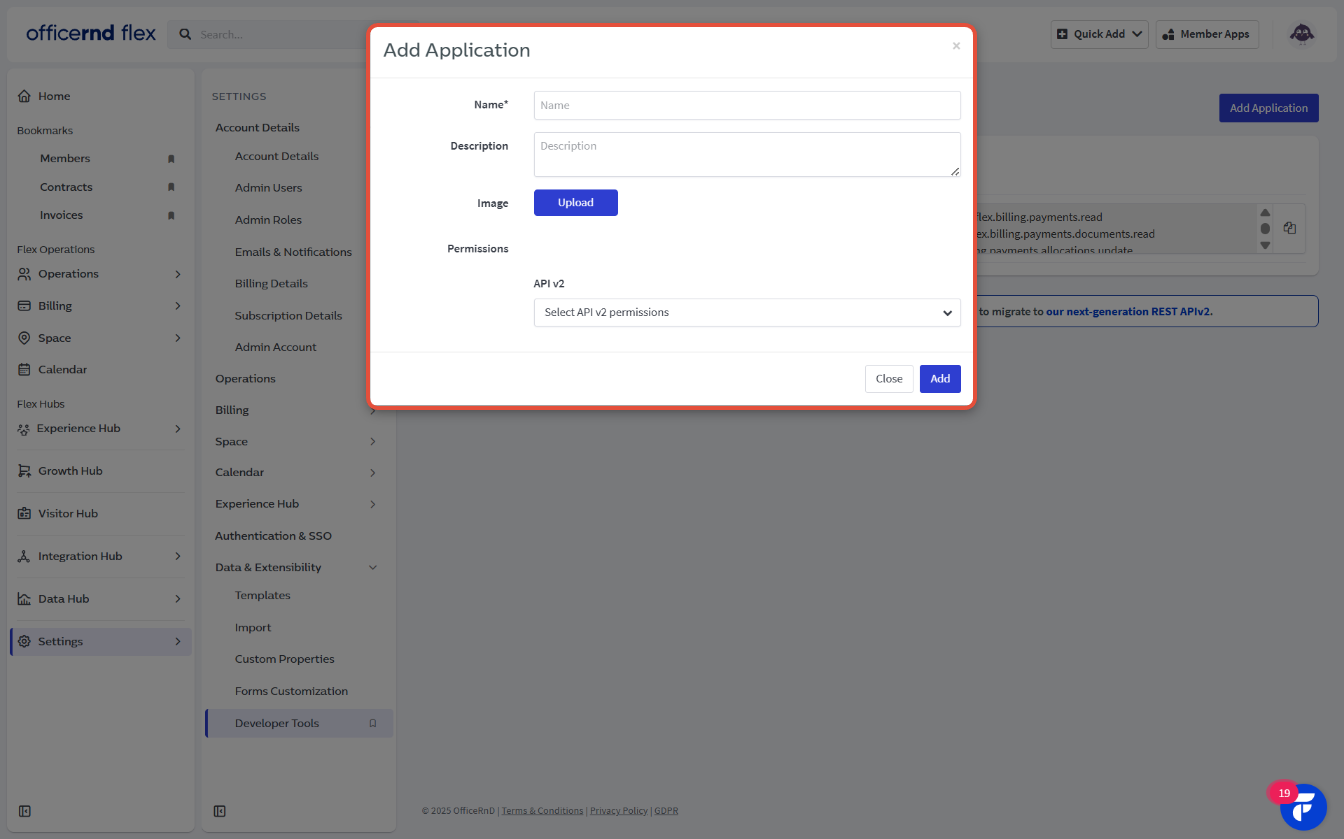 Then, enable the needed billing, community, space, and settings API permissions for the integration to send charges and connect customer accounts between both systems: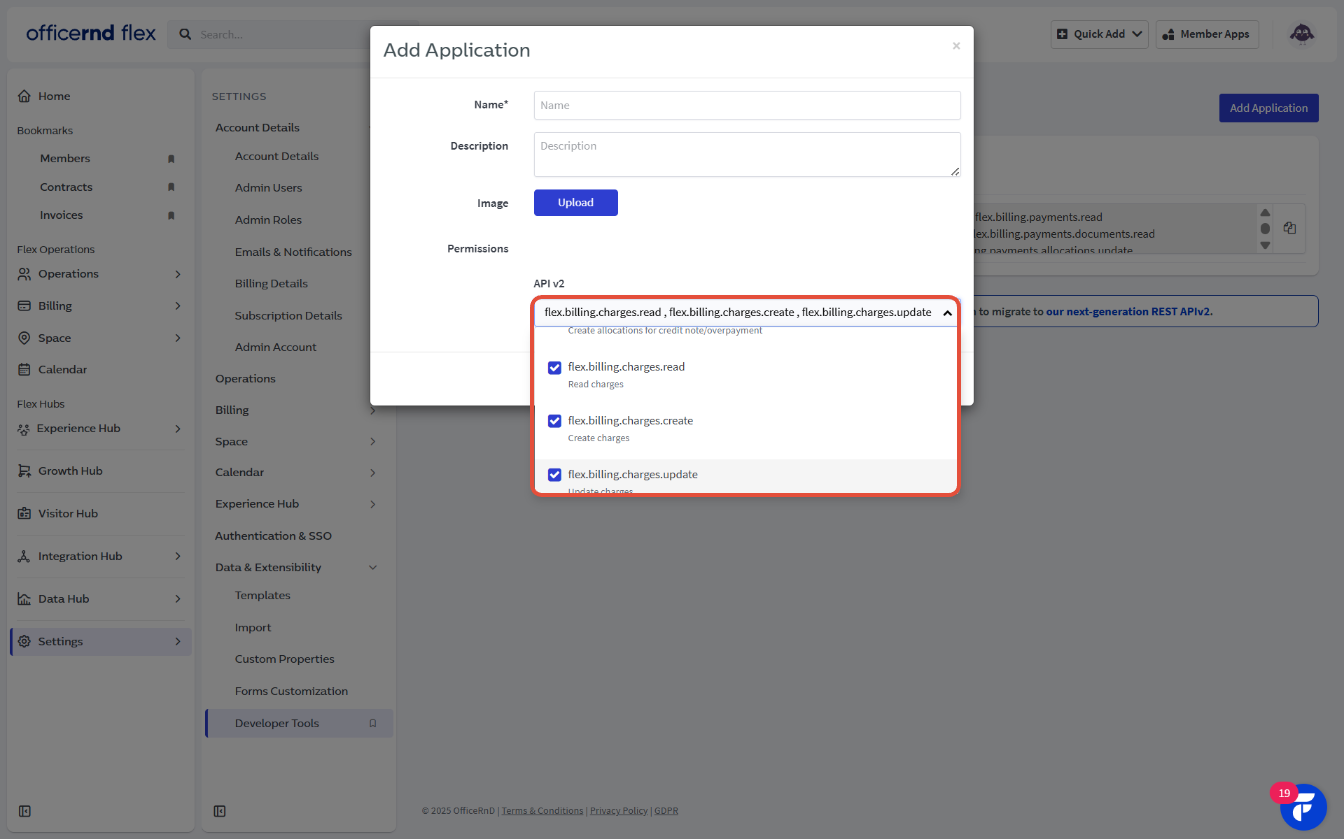
The following list of permissions is the minimum advised for a stable connection:flex.settings.webhooks.read flex.settings.integrations.read flex.space.locations.read flex.community.members.read flex.community.members.create flex.community.members.update flex.community.members.delete flex.community.fees.create
Finally, click "Add" to confirm and create your application: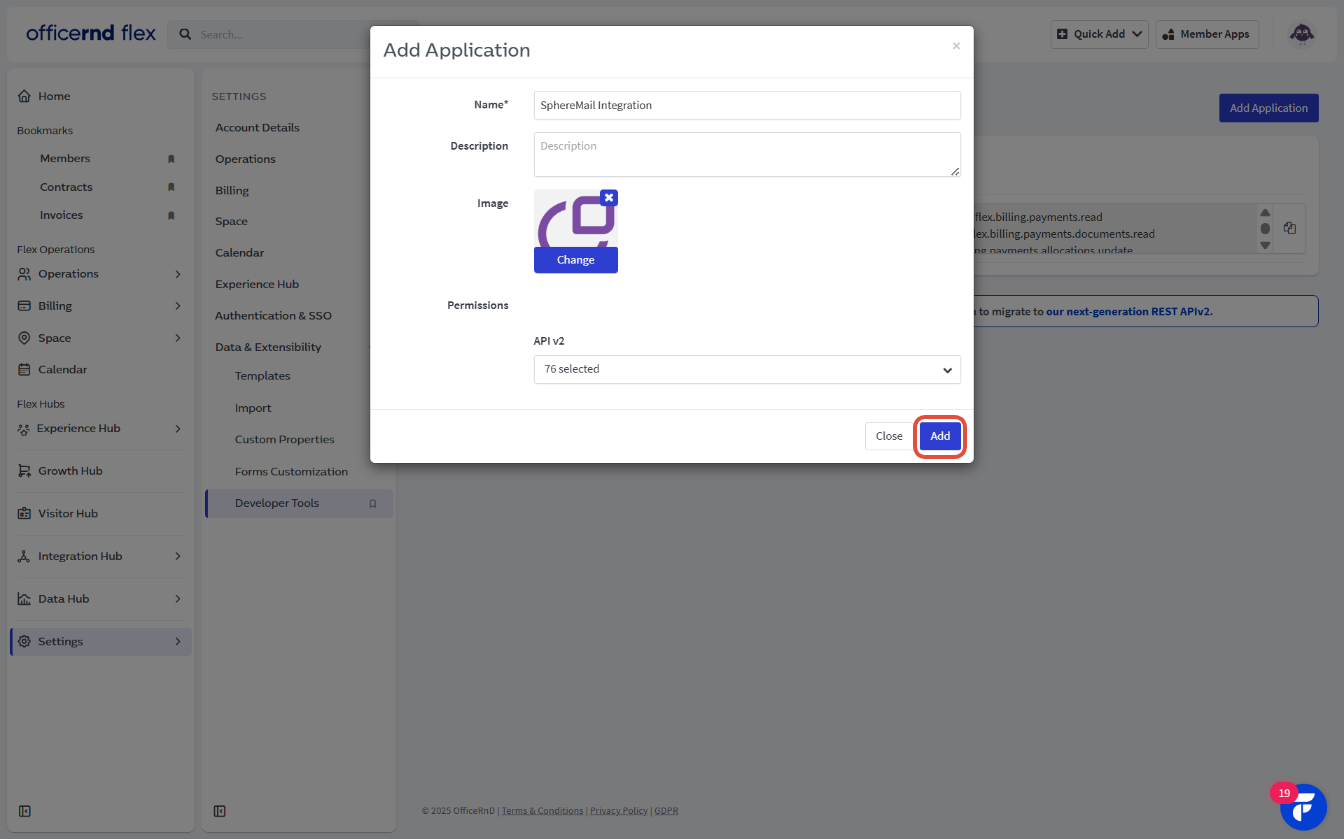
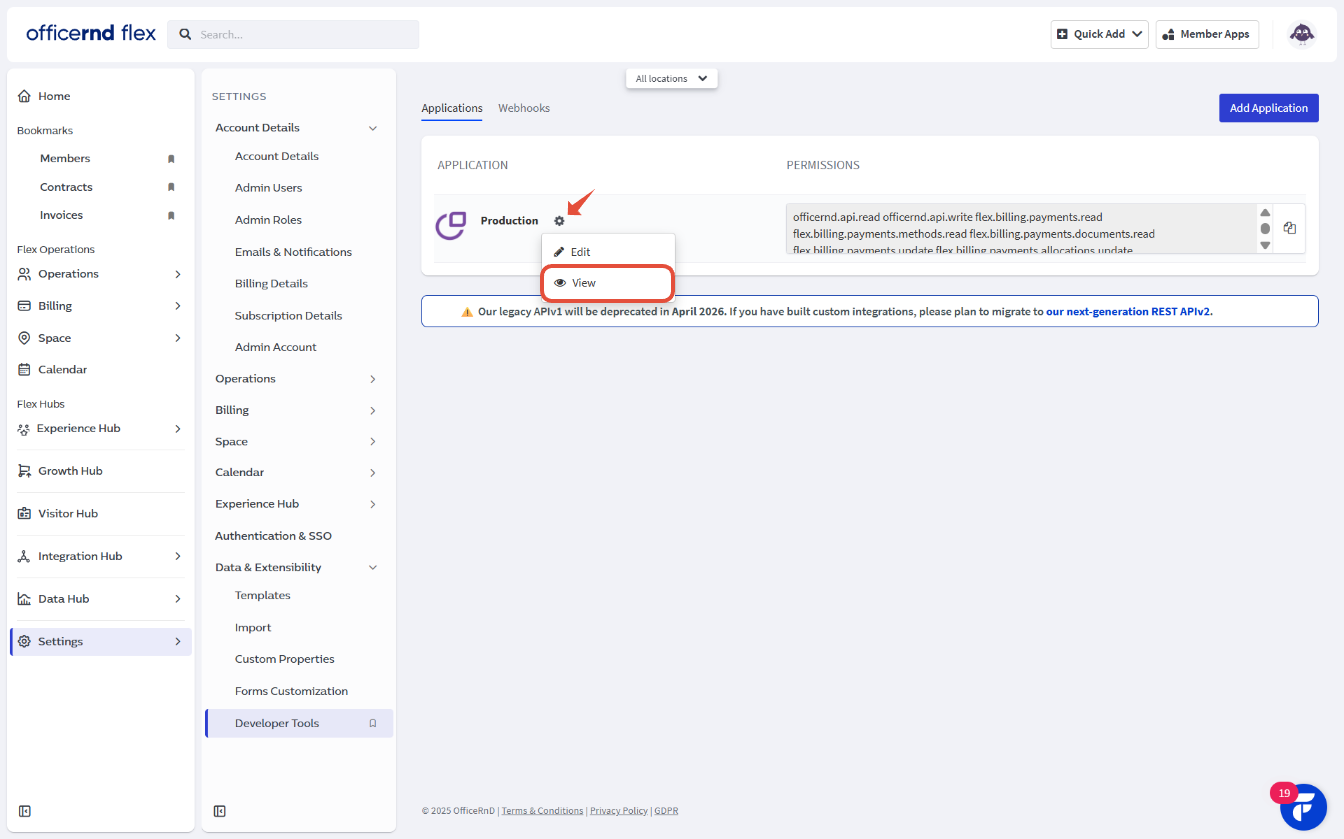
- Once your application is added, you’ll need to click on the gear icon next to the app you just created, select “View”, and copy the “Client ID” and “Client secret” keys:
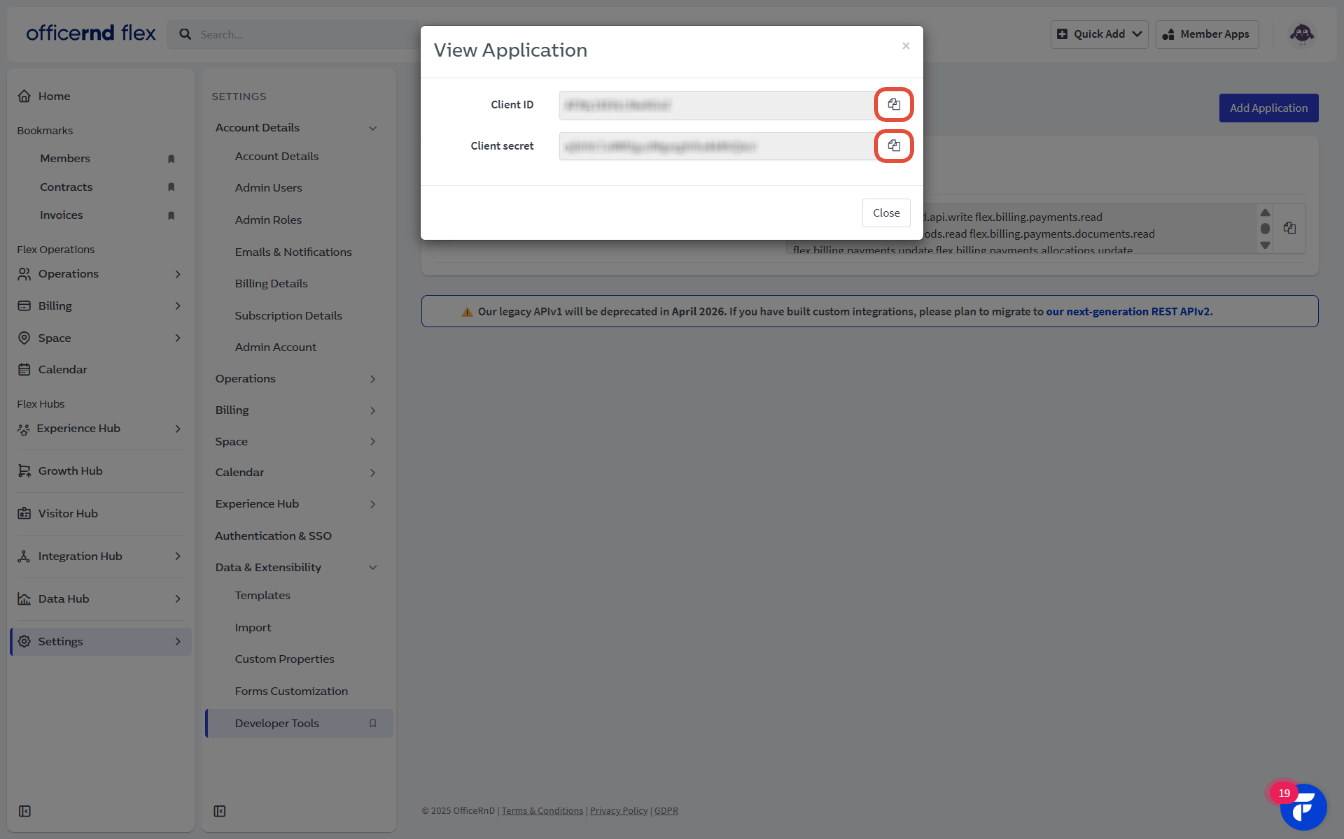
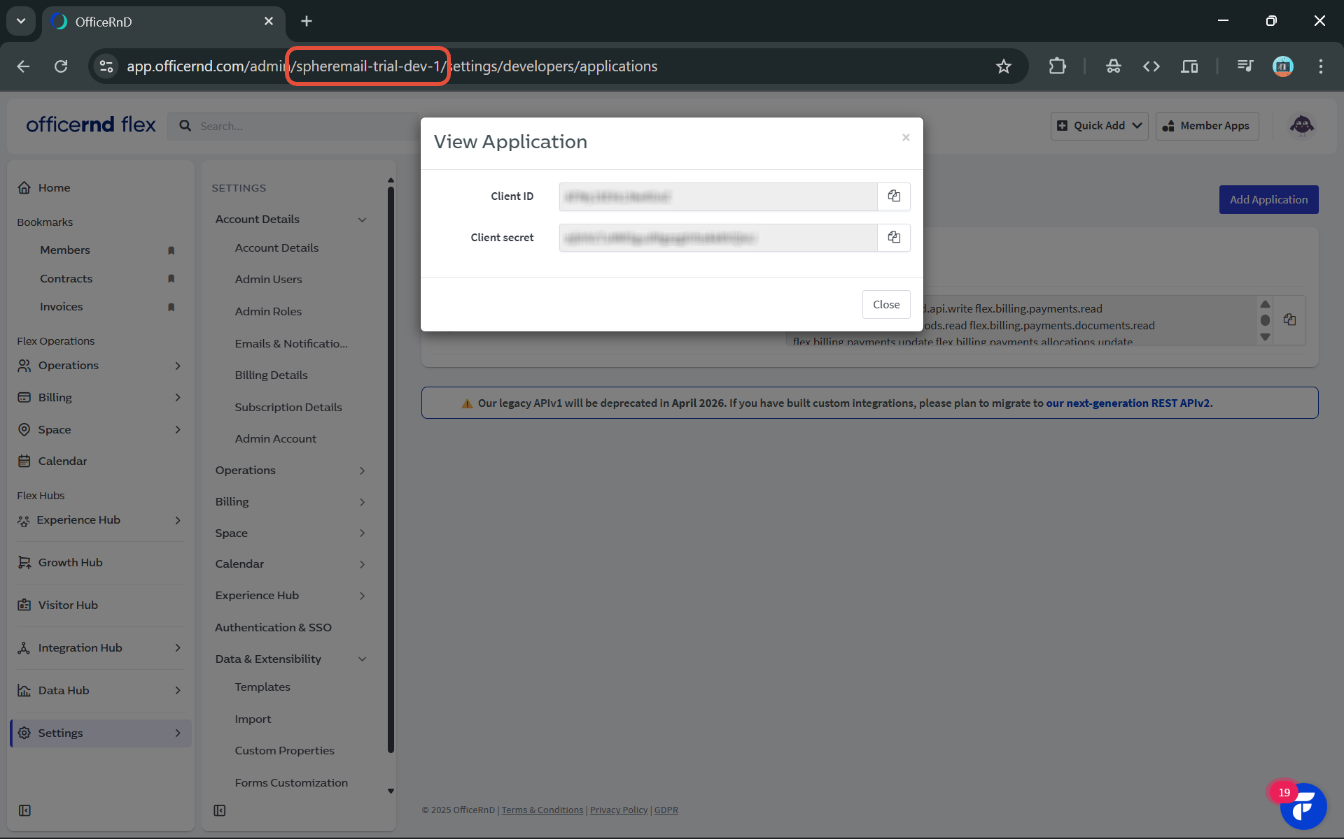
- The last thing you'll need from your OfficeRnD dashboard is to copy your “OfficeRnD Slug”, which is the highlighted part between "//" in your OfficeRnD Flex URL:
B) Once you’ve done that, you can now head to your SphereMail portal and log in with your Operator/Super Admin credentials: (Please note that Admins and Mail Admins do not have access to this section.)
- Go to “Business Settings”:

- Click on “Integrations” and choose the “Systems” tab. There you’ll find the option to set up OfficeRnD by first enabling the integration toggle:

Then, clicking on the “Connect” button that'll appear:
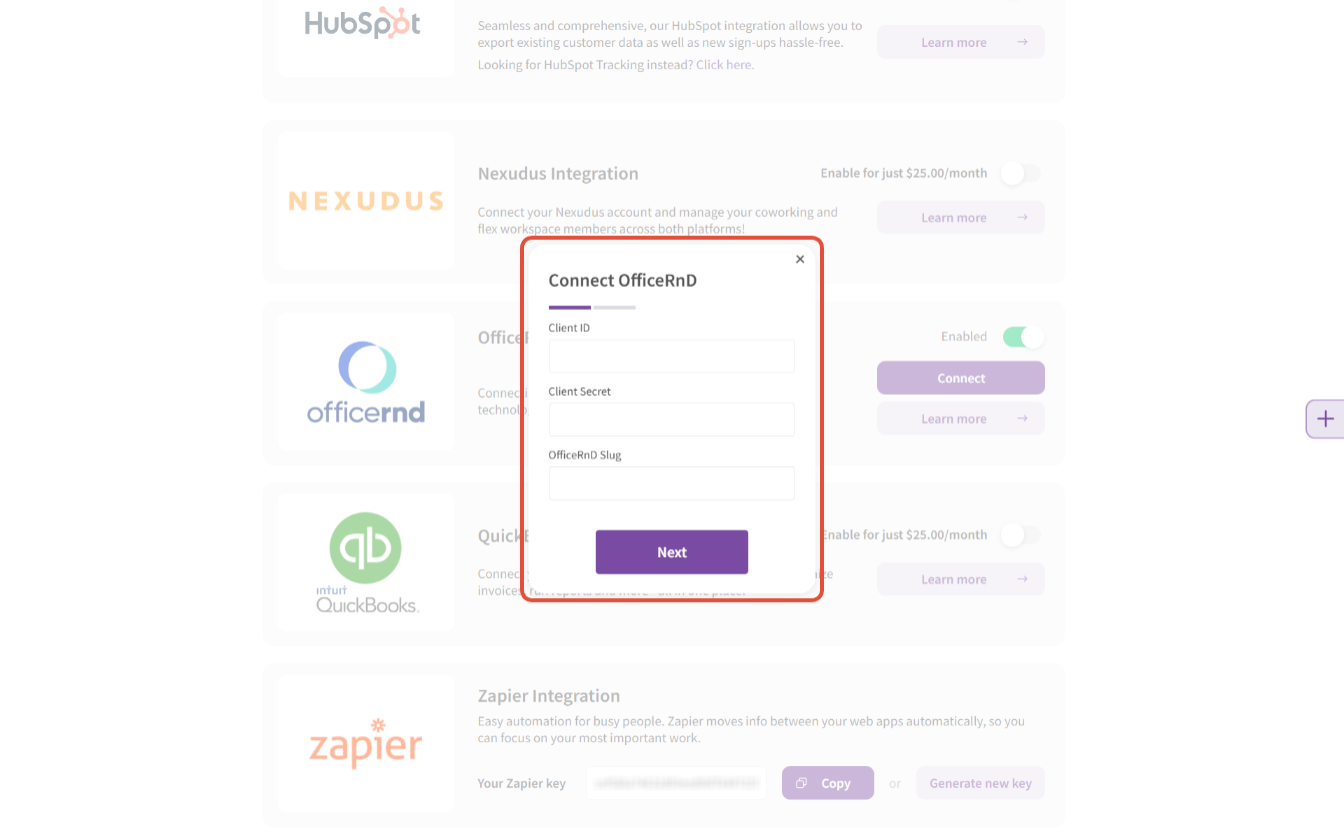
- You’ll get a popup window where you can first paste the info you’ve copied at steps A)4+5 from your OfficeRnD settings (Client ID, Client Secret Key, and Slug), and click "Next":
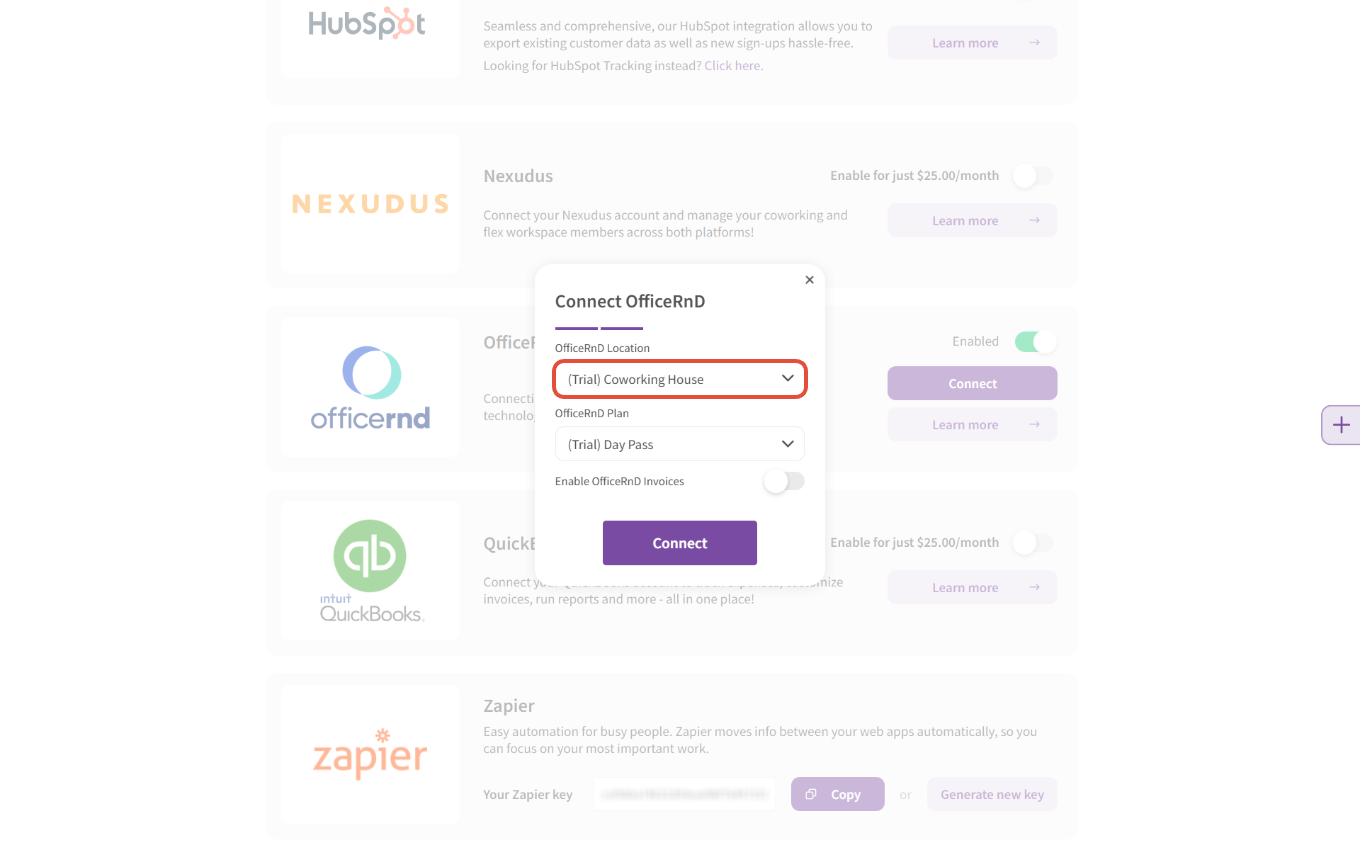
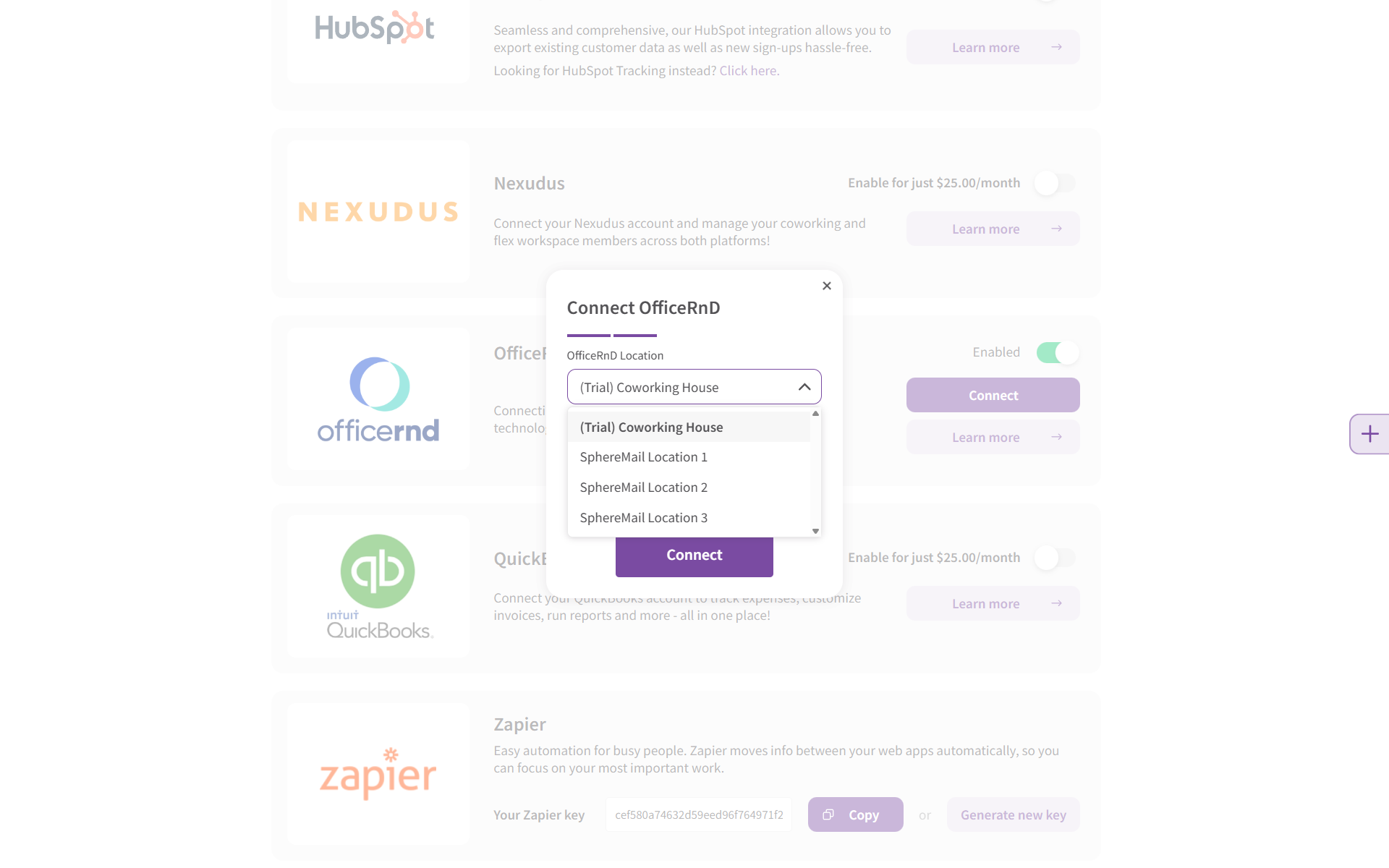
- Next, you'll need to select the OfficeRnD location you'd like to connect:
- Then select the plan to be associated with all SphereMail charges that will be exported to OfficeRnD:
Note: we recommend creating a separate one-off plan to use for this integration.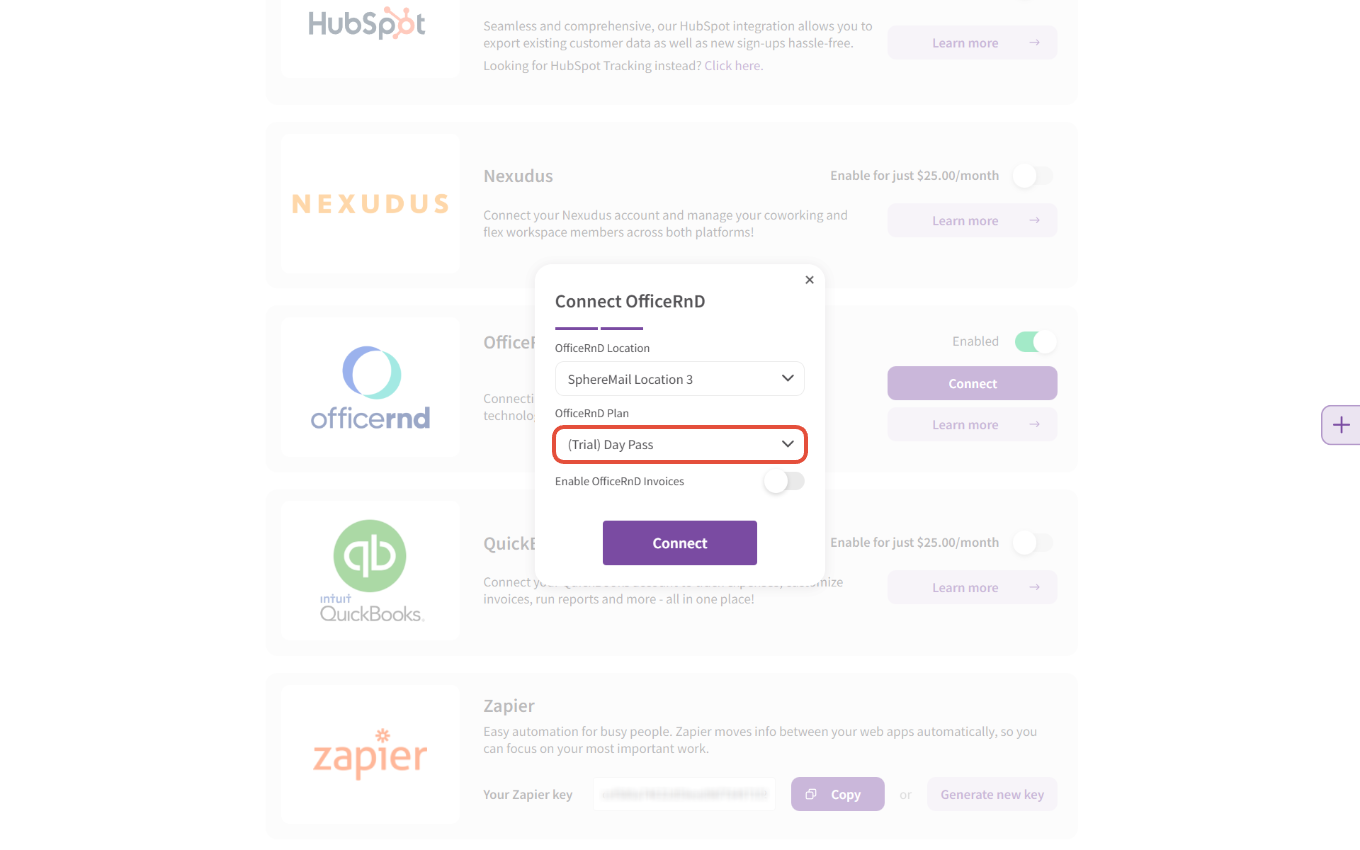
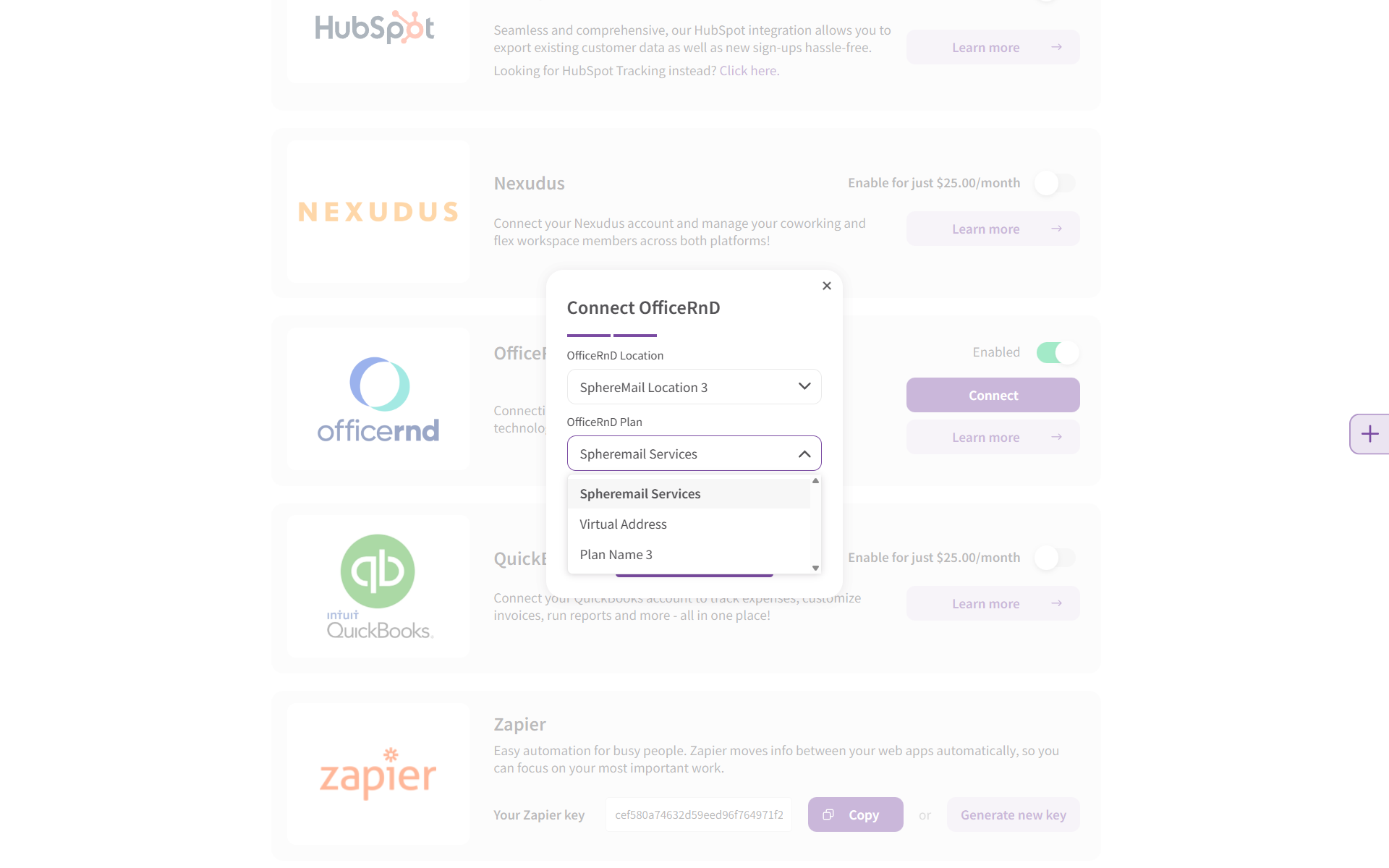
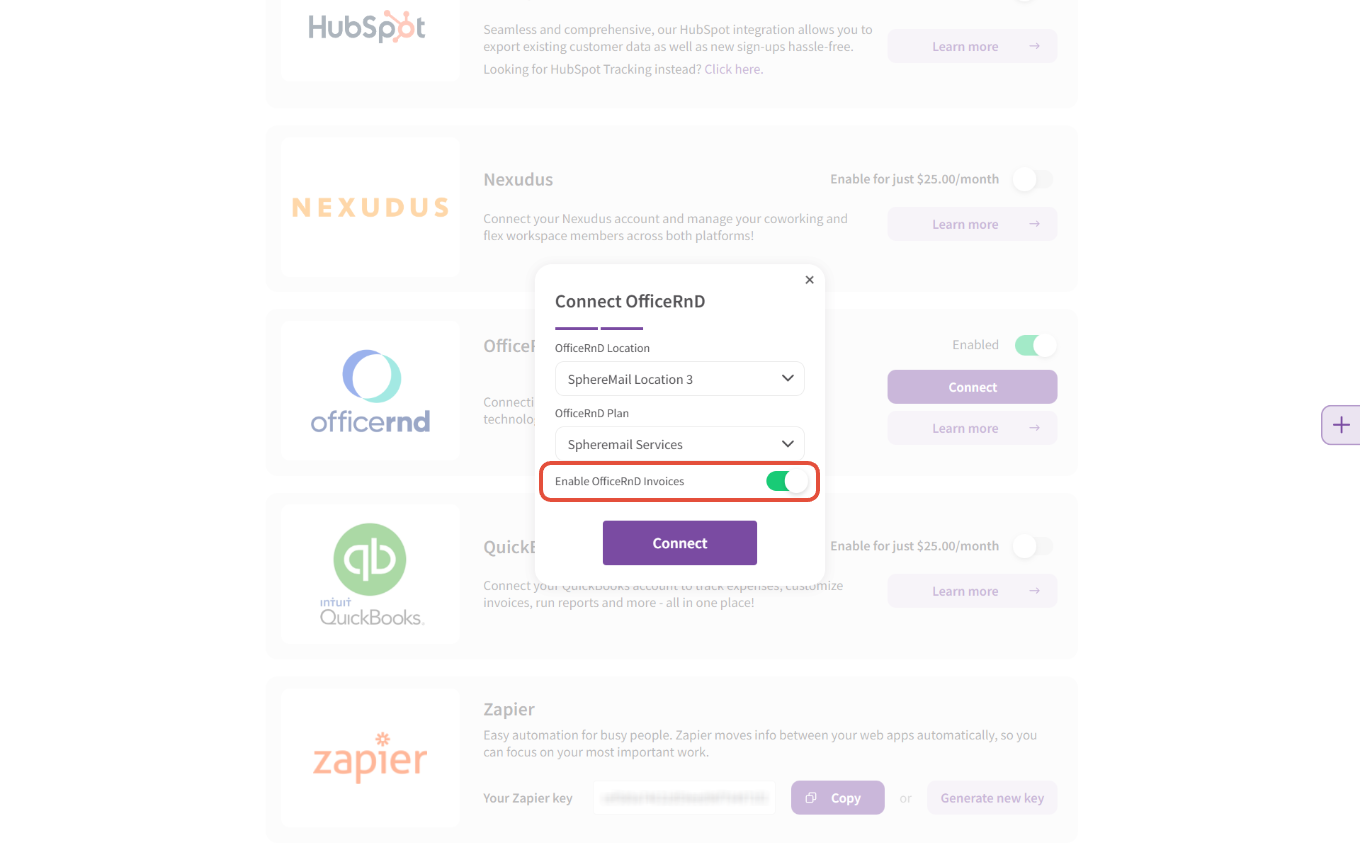
- Finally, you'll find the option to enable OfficeRnD invoices; enabling this toggle will have SphereMail automatically export your active customers' pending charges to their connected OfficeRnD accounts so you can handle their billing there:
- Once everything is configured, click on "Connect":
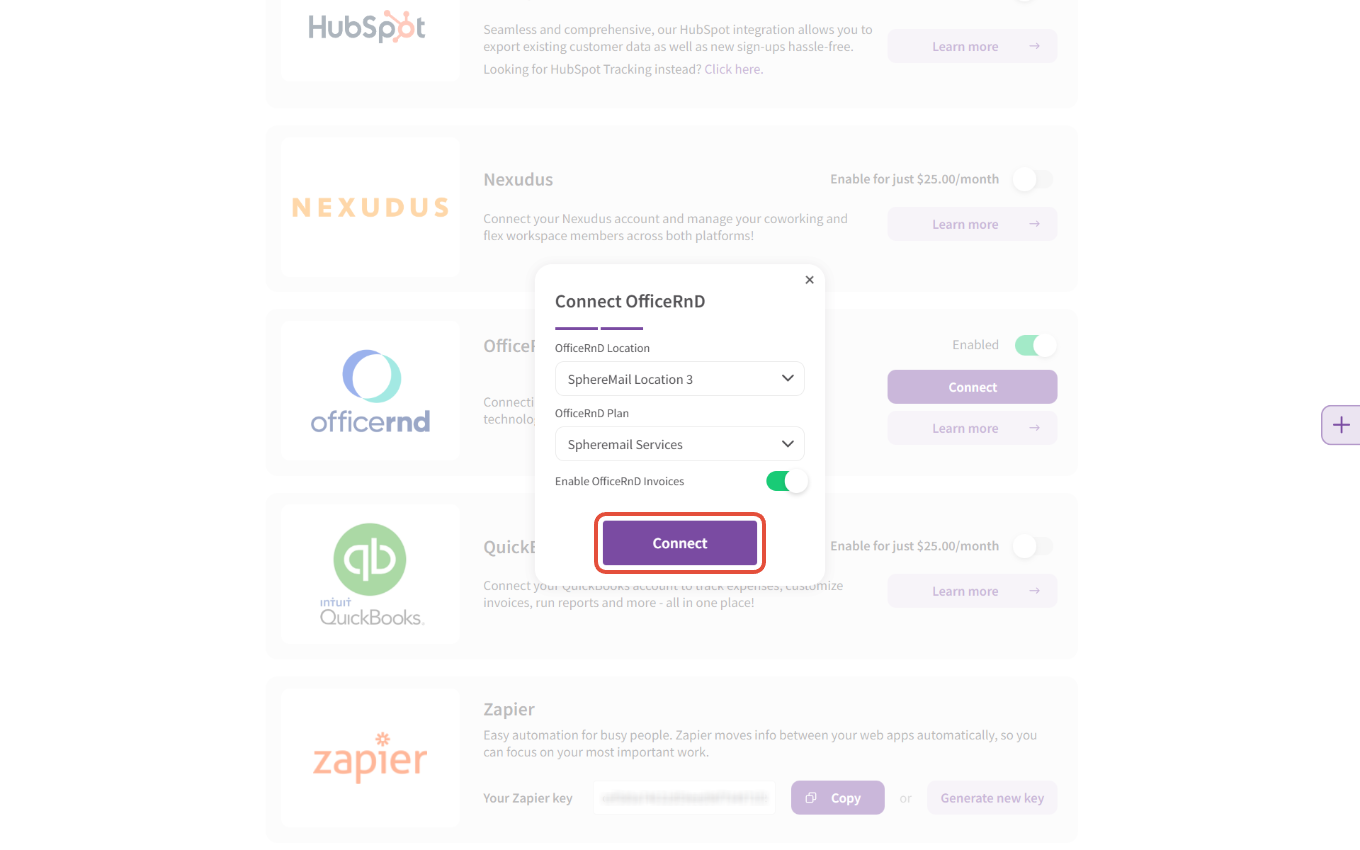
And you're all set!
Auto-connect all your SphereMail active customers:
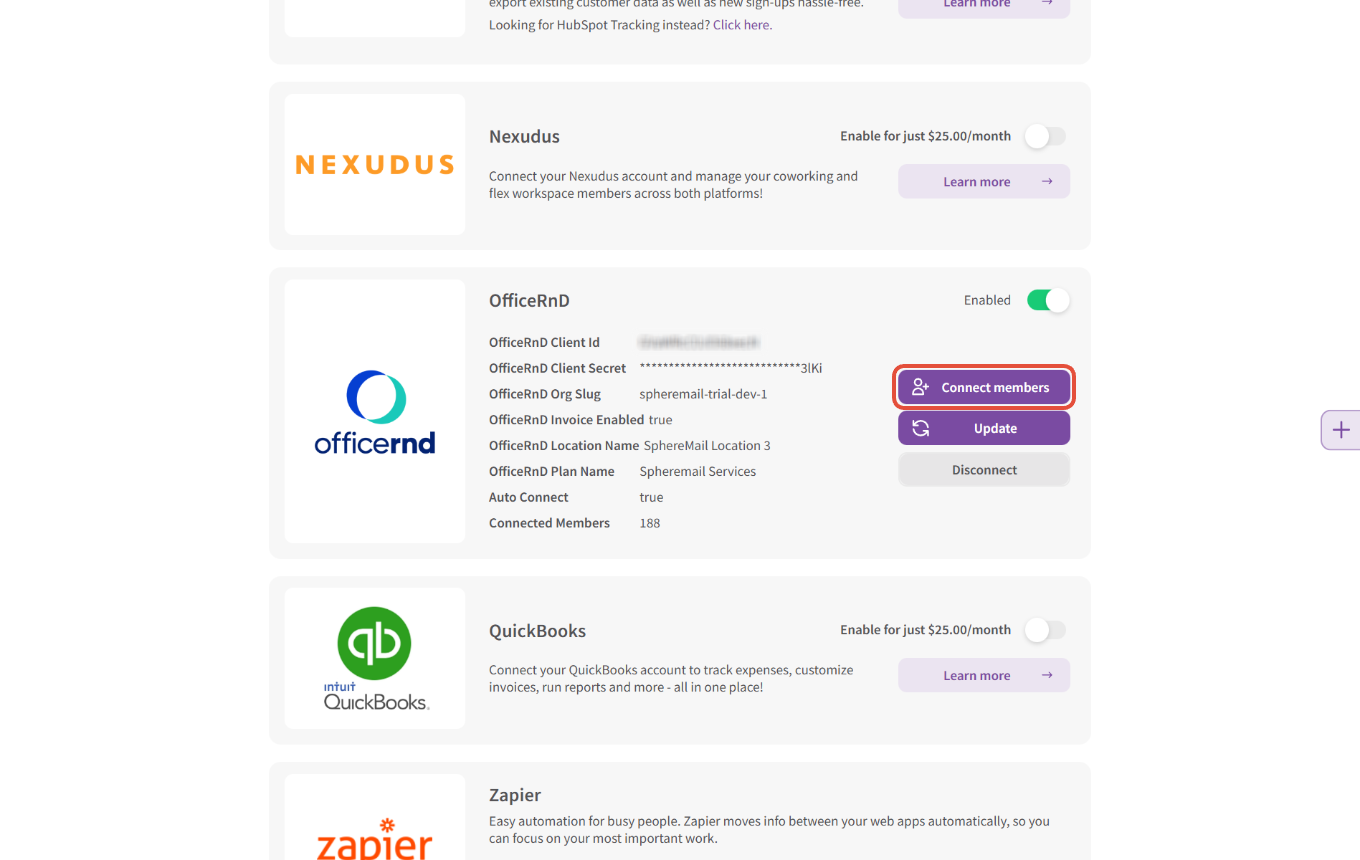
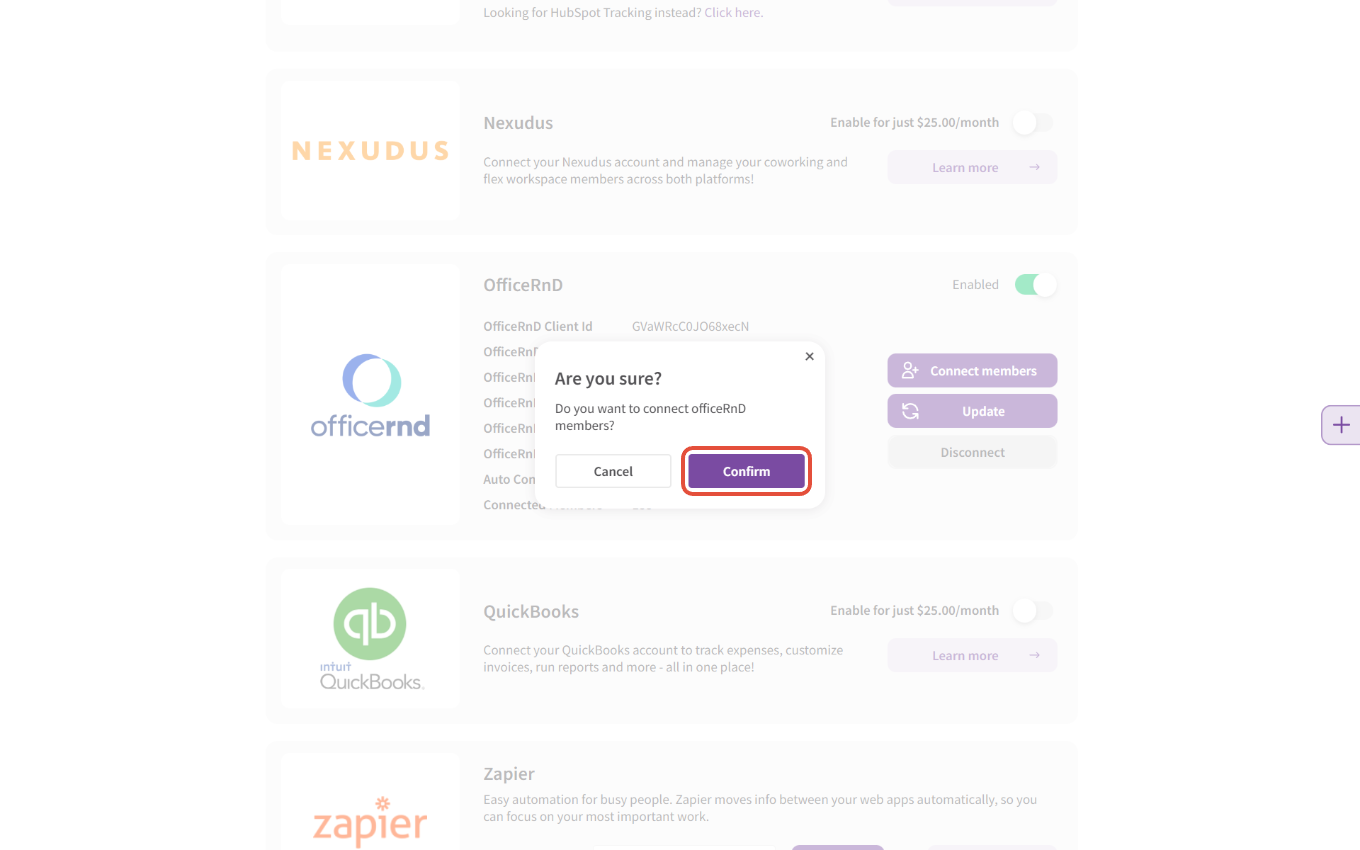
SphereMail will automatically connect your active customers between both platforms, but you can also start that process at any time to fix or re-sync the data by clicking on "Connect members" then "confirm", and the system will cross-reference the emails of your active customers and automatically update and connect them with their respective OfficeRnD member accounts:
Note: If a customer doesn't already have a member account on your OfficeRnD Flex account, it'll be automatically created using the info they've set up on their SphereMail account.
Manually connect specific customers:
If you need to connect a SphereMail customer to a specific OfficeRnD member account instead of relying on the automated process, you’ll need to visit the customer’s SphereMail account and manually choose and connect the needed OfficeRnD account: 


Note: For new customers who’ll sign up to your SphereMail portal AFTER you’ve set up your OfficeRnD integration— You won’t need to do anything; the system will connect them automatically as long as they’ve signed up on SphereMail using the same email addresses you have on file for their member accounts on OfficeRnD.
What information is shared and synced between both systems?
- Active customer accounts and contact information.
- New customer sign-ups on SphereMail are automatically added to your OfficeRnD account.
- Customers' newly created and pending invoices after the integration is set up and activated.
Note: SphereMail cannot export old invoices or any invoices created before the integration was enabled.
How to handle invoices when this integration is active?
SphereMail will automatically and periodically export any pending invoices for your connected customers to OfficeRnD once every 5 days starting the 1st of each month (this means our system will check on the 5th, 10th, 15th, 20th, 25th, and 30th of each month and export the pending invoices it finds), where you can find them listed in your invoice log as one-off fees that you can process via OfficeRnD as needed:

And all exported invoices are automatically closed on SphereMail once they're successfully added to your OfficeRnD log:

Any SphereMail customer account that's not connected to OfficeRnD will follow the default billing process, where they will have to add their billing info, and you will charge them via SphereMail using your connected payment gateway as usual.